
Assets
Upload and reuse images and videos across paywalls for easy branding and asset management.
Assets is a media library for all of your aywalls. It lets you upload images and videos once, then reuse them. This helps you avoid uploading the same file multiple times or copying URLs out of older paywalls when you want to reuse media.
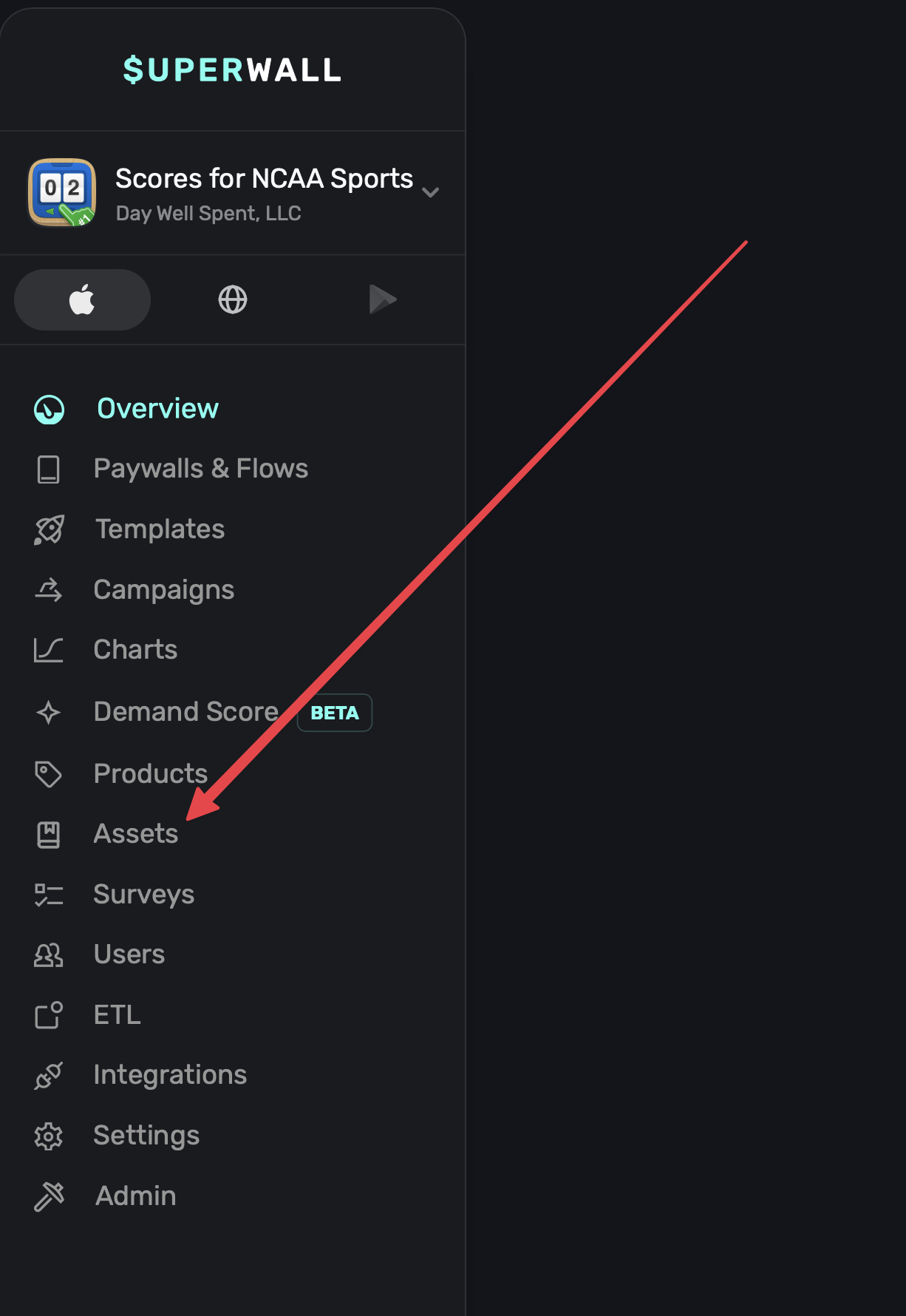
To open it, click Assets in the sidebar:
How assets get into the library
- Upload from Assets: Open Assets from the sidebar, then click Add Assets or drag files onto the page.
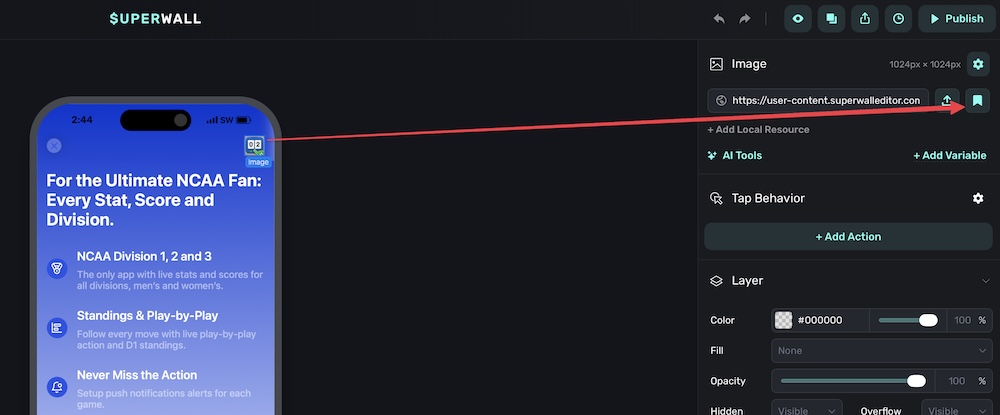
- Upload from the editor: Upload an image or video from a paywall field and Superwall adds it to Assets automatically.
- Discover existing media: Use Discover Assets to scan existing paywalls and add images and videos that are already in use.
Upload assets from the Assets page
- Open Assets: Click Assets in the sidebar for the currently selected app.
- Add files: Click Add Assets, or drag and drop image and video files into the page.
- Wait for the upload to finish: Uploaded files appear in the library when the upload completes.
Discover assets from existing paywalls
Use this if you already have paywalls with media and want to build the library from what is already in use.
- Open the menu: Click the menu in the top-right corner of the Assets page.
- Run discovery: Click Discover Assets.
- Review the results: Superwall scans existing unarchived paywalls and adds any images and videos it finds to the library.
Discovering assets does not change any existing paywalls. It only creates asset entries so those files can be reused later.
Use an asset in a paywall
- Select a component: In the paywall editor, select an image or video component.
- Open the asset picker: Click the bookmark button next to the source field to open Pick from Assets.
- Choose an asset: Search or browse the library, then select the asset you want to use.
- Save the paywall: The selected asset is applied to that component.
For videos, the asset picker sets the main video source. Configure the thumbnail separately in the video settings if needed.
Find and review assets
- Filter by type: Switch between All, Images, and Videos.
- Search by name: Use the search field to find a specific asset.
- Preview an asset: Click an asset card to open a larger preview and view its details.
- Download an asset: Use the asset menu or preview dialog to download the file.
Delete assets
- Remove it from the library: Use the asset menu and click Delete.
- Keep existing paywalls working: Deleting an asset does not remove it from paywalls that already use it. It only removes it from the reusable library.
Things to know
- Supported media: Assets supports images and videos.
- Selected app context: The library you see is based on the app you have selected.
- Project sharing: If the selected app belongs to a project, the same asset library is shared across the apps in that project.
- No automatic replacements: Uploading, discovering, or deleting an asset does not update existing paywalls automatically.
How is this guide?
Using Demand Score in Campaigns
Learn how to create audiences based on demand score ranges to run targeted experiments and improve conversion.
Campaigns
Campaigns are logical groupings of paywalls to show when certain _events_ are registered and _conditions_ are met. They are an incredibly powerful tool for creating experiments and managing best-in-class monetization flows.